Animation Testing — Catalog Avatar Creator
Overview
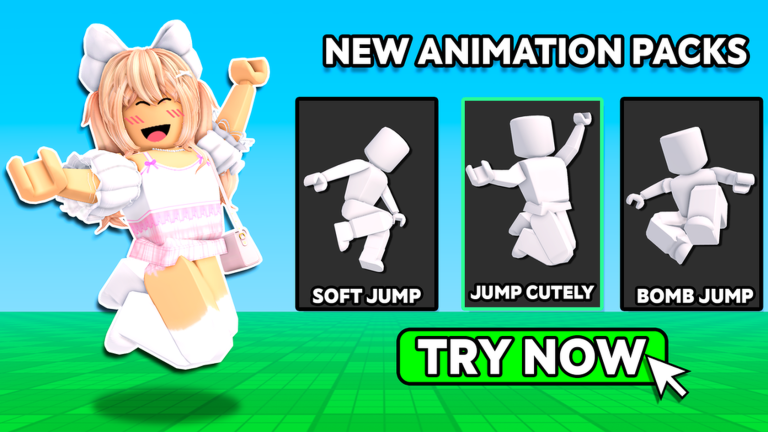
Catalog Avatar Creator allows players to preview animation packs on their avatar before purchasing them with Robux. This ensures the animation fits the intended look and feel of the avatar.
What Can Be Tested
- Stance preview — see how the avatar stands idle with a given animation pack equipped
- Movement visualization — observe how the avatar walks, runs, and transitions between animations
- In-game appearance simulation — understand how the avatar will look in motion within actual Roblox experiences
- Posture effect assessment — evaluate how an animation changes the perceived proportions and posture of the avatar
When to Use Animation Testing
Animation testing is the fifth step in the recommended design sequence (after building the core outfit and adding accessories, and before making the final purchase decision). Previewing animations before purchasing is especially important because an animation pack changes the entire movement style of the avatar, which can affect how clothing and accessories appear in motion.
Avatar Customization — Catalog Avatar Creator
Overview
Catalog Avatar Creator provides a comprehensive avatar customization system that lets players try on any item from the Roblox catalog for free. Customization covers body type selection, layered clothing, accessories, avatar makeup, and special toggle features.
Body Types
R6
- Classic Roblox body style
- Character is composed of 6 body parts
- Blocky, retro appearance
- Switch to R6 using the
/r6command
R15
- Modern Roblox body style
- Character is composed of 15 body parts
- Smooth, more articulated appearance
- Switch to R15 using the
/r15command
Layering System
Clothing and accessories are applied in a layered order. Understanding the layer order is essential for creating complex looks and avoiding visual clipping:
- Base clothing — shirts, pants
- Outerwear — jackets, hoodies
- Accessories
- Head items
- Face items
- Hand items
Using the "Nothing" option in certain clothing slots enables special effects through layering, such as a crop-top appearance when outerwear is placed over an empty base layer.
Avatar Makeup
Avatar Makeup cosmetics can be applied to the face. These include:
- Eyeshadow
- Blush
- Other face cosmetics
Special Avatar Toggles
These commands toggle specific high-demand cosmetic states that simulate owning premium avatar accessories:
| Toggle | Command | Description |
|---|---|---|
| Headless | /headless | Removes the avatar's head, simulating the Headless Horseman bundle appearance |
| Super Super Happy Face (SSHF) | /sshf | Applies the Super Super Happy Face cosmetic to the avatar |
| Korblox (right leg) | /korblox | Toggles the Korblox right leg accessory (skeleton leg) |
| Korblox (left leg) | /korblox2 | Toggles the Korblox left leg accessory |
Browsing and Trying On Items
- Players can search and filter the entire Roblox catalog within the experience
- Use the "Free" price filter to identify zero-Robux items
- Enter an item ID directly to load any specific catalog item instantly
- Items tried on within the experience are free to preview; permanent ownership requires Robux
Purchasing Items
- Items can be purchased directly within Catalog Avatar Creator using Robux
- All purchased items are permanently added to the player's main Roblox inventory
- Purchased items are usable across all Roblox experiences and games
Booth Feature — Catalog Avatar Creator
What Is the Booth?
The booth is an in-game object that players can spawn using the /booth command. It displays the player's current avatar and includes text that the player can edit.
How to Create a Booth
- Open the in-game chat
- Type
/booth - Press Enter
A booth will appear in the game world featuring the player's current avatar look.
Editable Text
The text displayed on the booth is fully editable by the player. Players can customize the message shown on their booth to display anything they choose.
Connection to PLS DONATE
The /booth command in Catalog Avatar Creator is connected to the Roblox experience PLS DONATE. Using the booth command places the player's decorated avatar into PLS DONATE, allowing players to design and preview their PLS DONATE booth appearance directly within Catalog Avatar Creator before setting it up in that experience.
Commands — Catalog Avatar Creator
Commands are fast ways to perform complex actions using the in-game chat. All commands work in both public and private servers. Type /cmds in the chat to see the full list of commands in-game.
How to Use Commands
- Open the in-game chat (chat icon in the top-left corner of the screen)
- Type the command exactly as listed below
- Press Enter to execute it
Avatar Commands
| Command | Description |
|---|---|
/r6 | Converts the character model to R6 format (classic 6-part body) |
/r15 | Converts the character model to R15 format (modern 15-part body) |
/headless | Toggles the headless avatar appearance option |
/sshf | Toggles the Super Super Happy Face cosmetic |
/korblox | Toggles the Korblox right leg accessory |
/korblox2 | Toggles the Korblox left leg accessory |
/ref | Displays your avatar reference |
/self | Displays your personal profile information |
Utility Commands
| Command | Description |
|---|---|
/speed [number] | Sets the character's movement speed to the specified number |
/clone | Summons a clone of your character |
/npc | Summons a cloned version of your character that acts on its own |
/clear | Clears the Roblox chat |
/fps | Toggles the FPS display label |
/version | Toggles the Place Version label visibility |
/portrait | Enables Portrait Mode for mobile users (not recommended) |
/booth | Creates a booth; the text on the booth is editable by the player |
Navigation Commands
| Command | Description |
|---|---|
/main | Moves you to the main game area |
/public | Moves you to a public server |
/vip | Teleports you to a private server that no one else can join |
/private | Alias for /vip; teleports you to a private server |
/test | Moves you to the test server (not recommended for regular use) |
/voice | Moves you to the Voice Chat server |
Code Redemption Command
| Command | Description |
|---|---|
/redeem [CODE] | Redeems a promotional code (codes are case-sensitive) |
Notes
- All commands function in both public and private servers
/portraitis available but not recommended for most players/testmoves to the test server, which is not recommended for regular use/vipand/privateare interchangeable aliases for the same command
Community Outfits — Catalog Avatar Creator
Overview
Catalog Avatar Creator features a massive library of player-created outfit designs that can be browsed, copied, and used as inspiration for building a personal avatar look.
Scale
- Over 50 million community-created outfits are available to browse within the experience
Maximum Capacity
- The outfits system has a maximum capacity of 4,067 outfits
Browsing Options
Players can sort community outfits by:
- Popularity — shows the most liked or widely used outfits first
- Recency — shows the newest outfit submissions first
How to Use Community Outfits
- Copy an entire look — players can adopt a full outfit from another player in one action, equipping all items in that outfit onto their avatar
- Adopt individual pieces — players can selectively take specific items from a community outfit rather than copying the entire look
- Community outfits serve as a speed advantage for discovering new combinations before purchasing, allowing players to see how items look together on a full avatar
Saving Avatars
Players can save their own custom avatar designs in-experience, preserving looks they have assembled without needing to purchase all items immediately.
Currencies — Catalog Avatar Creator
Robux
Robux is Roblox's premium currency and the primary currency used in Catalog Avatar Creator. While trying on items is completely free, permanently purchasing any catalog item requires Robux. All items bought with Robux are added permanently to the player's main Roblox inventory and can be used across all Roblox experiences.
Gold Coins
Gold Coins are an in-game currency in Catalog Avatar Creator. They can be obtained by redeeming promotional codes. The active code DAPPER rewards 100 Gold Coins upon redemption.
Silver Coins
Silver Coins are an in-game currency in Catalog Avatar Creator. They can be obtained by redeeming promotional codes. The active code DAPPER rewards 10,000 Silver Coins upon redemption.
Events and Partnerships — Catalog Avatar Creator
Events
The Hunt: First Edition
Catalog Avatar Creator was featured as a participating experience in The Hunt: First Edition, a Roblox-wide event. Players could visit Catalog Avatar Creator as part of completing The Hunt event challenges.
Partnerships
Adidas
- Catalog Avatar Creator has an Adidas UGC store integration (active as of June 2026)
- Adidas-branded items are available within the experience for players to try on and purchase
Official Roblox Limited Items
- Official Roblox limited items are available for direct purchase within Catalog Avatar Creator
- Players can browse and acquire these limited-availability items from within the experience
Game Overview — Catalog Avatar Creator
What Is Catalog Avatar Creator?
Catalog Avatar Creator is a Roblox experience that functions as a free fitting room for the entire Roblox catalog. Players can try on and preview any catalog item without spending Robux. The experience allows players to experiment with accessories, hats, limiteds, hair combos, bundles, animation packs, and more before deciding whether to purchase them permanently.
Creator
- Username: itsMuneeeb (Roblox display name: Muneeb)
- User ID: 61648063
- Place ID: 7041939546
- Official Roblox Group: https://www.roblox.com/groups/15102943
Genre
Fashion / Customization
Visit Milestones
- Surpassed 1 billion visits on May 2, 2023
- Surpassed 2 billion visits on March 15, 2024
- Over 6.5 billion total visits as of 2026
Player Base
- Approximately 80,000 concurrent players
- 93.75% approval rating
Awards & Recognition
- Won "Best Fashion" (also referenced as "Best Use of Fashion") at the Roblox Innovation Awards in 2023
- Won "Best Fashion" at the Roblox Innovation Awards again in 2024
- Featured in The Hunt: First Edition event
Community Outfits
Players have collectively contributed over 50 million community-created outfits to the experience, which other players can browse, copy, or use as inspiration.
Item ID System — Catalog Avatar Creator
What Is the Item ID System?
Every item in the Roblox catalog has a unique numeric identifier called an item ID. Catalog Avatar Creator allows players to input item IDs directly in-game to instantly load and preview that specific item on their avatar, bypassing the need to search for it manually.
How to Find an Item ID
Item IDs are embedded in the catalog URL format on the Roblox website:
roblox.com/catalog/[ID]/
For example, if a catalog item's URL is roblox.com/catalog/1234567/, the item ID is 1234567.
How to Use an Item ID In-Game
- Find the item ID from the Roblox catalog URL
- Open Catalog Avatar Creator
- Input the item ID in the designated field in-game
- The item loads instantly on the avatar for preview
Use Cases
- Previewing limited items that may not appear easily through standard catalog browsing
- Previewing UGC (User-Generated Content) items directly by ID
- Quickly loading a specific item shared by another player or found in a video or post
- Accessing items faster than browsing through category menus
Monetization — Catalog Avatar Creator
Free-to-Play Model
Catalog Avatar Creator is completely free to play and use. There are no game passes, no premium-only features, and no paywalled areas. All core functionality — trying on items, browsing community outfits, using commands, accessing private servers — is available to every player at no cost.
How Revenue Is Generated
The experience generates revenue through catalog item purchases. When players try on items in Catalog Avatar Creator and decide to buy them, they spend Robux to permanently acquire those items through the Roblox catalog. These purchases go through the standard Roblox catalog system.
Purchased Items
- All items purchased within Catalog Avatar Creator are permanently added to the player's main Roblox inventory
- Purchased items are usable across all Roblox games and experiences, not just within Catalog Avatar Creator
No Game Passes
Catalog Avatar Creator has zero game passes. Every player has access to the same full feature set regardless of whether they have spent any money.
Server Types — Catalog Avatar Creator
Catalog Avatar Creator offers several server environments that players can navigate between using commands.
Available Servers
Main Server
- Command:
/main - The primary game area where players spawn by default
Public Server
- Command:
/public - A standard server open to all players
VIP / Private Server
- Commands:
/vipor/private(both commands are interchangeable) - Teleports the player to a private server that no other player can join
- Recommended for lag-free browsing when the player wants a distraction-free experience to try on items without other players present
Test Server
- Command:
/test - Moves the player to a test server
- Not recommended for regular use
Voice Chat Server
- Command:
/voice - Moves the player to a server where Roblox Voice Chat is enabled
Notes
- All navigation commands work from both public and private servers
/vipand/privateare aliases for the same command; either one can be used
Styling Tips — Catalog Avatar Creator
Design Sequence
For the best results, build an avatar look in this order:
- Body proportions — adjust height and width to establish a balanced silhouette
- Style concept — decide on a theme or aesthetic before picking items
- Core outfit — choose the base clothing (shirts, pants, jackets)
- Accessories — add accessories selectively after the core look is established
- Animation testing — preview how the avatar moves before committing
- Purchase decision — only buy after completing the full review
Color Coordination
Use 2–3 coordinated colors per outfit. Recognized color schemes to use:
| Scheme | Description |
|---|---|
| Complementary | Opposite colors on the color wheel (high contrast) |
| Analogous | Colors adjacent on the color wheel (harmonious, low contrast) |
| Monochromatic | Different shades and tints of a single color |
| Triadic | Three colors evenly spaced on the color wheel |
Accessories
- Limit the number of statement pieces — avoid overcrowding the avatar with too many bold accessories
- Ensure accessories do not clip through clothing or hair
- Maintain a clear focal point — do not add items that compete with or confuse the main visual focus
- Verify that all accessories are proportionally fitting to the avatar's size
General Styling Principles
- "Less can be much better at times" — restraint often produces better results than piling on items
- Prioritize base clothing (shirts, pants) from free items to save Robux
- Spend Robux on high-visibility pieces such as hair and face items, which have the greatest impact on overall appearance
Pre-Purchase Checklist
Before spending Robux on any item, perform these checks:
- Rotate the avatar and view it from every angle
- Zoom in to inspect item fit and detect any clipping
- Confirm no clipping between accessories, clothing, and hair
- Confirm style coherence — all equipped items work together visually
- Allow 24+ hours before purchasing items priced above 100 Robux — a waiting period helps confirm the purchase is truly wanted
Practical Tips
- Use the
/vipcommand to access a private server for uninterrupted, lag-free browsing - Use the "Free" price filter in the catalog to find zero-Robux items and build a base look at no cost
- Use multi-angle rotation to assess fit from all sides, not just the front
- Use zoom functionality for a close-up assessment of detail and fit accuracy